How to Download Twitter Video and GIFs from X (Free, no Login)

On this page (11 sections)
- What You Need
- How to Download Twitter Video in 4 Steps
- How to Download GIFs from X
- Where Does the File Go?
- Tips to Download Twitter Video Posts Faster
- What Can’t Be Downloaded?
- Does the Video Keep Its Sound and Quality?
- Is It OKAY to Download Videos from X?
- Save Videos from Other Platforms Too
- Who Makes GrabThatVideo?
- Save Your next Video from X
Updated November 2026 · Written by the GrabThatVideo team
X (formerly Twitter) doesn’t let you save videos from its app, but a web tool can do it in about 10 seconds. To download Twitter video posts for free, copy the post’s link, paste it into a downloader, pick a quality and save the MP4. GIFs work the same way. It runs on Android, iPhone, Windows, and Mac, with no X login and no app.
This GrabThatVideo guide covers each step, how GIFs download, where the file goes on each device, and which posts can’t be saved.
Quick answer: To download Twitter video posts, open the post on X, tap Share → Copy link, paste the link into GrabThatVideo’s X (Twitter) video downloader, choose a quality and tap Download. The video saves as an MP4 with sound. GIFs save as MP4 too.
What You Need
To download Twitter video posts, you probably have everything already:
- The X app, or x.com in a browser, to copy the post’s link.
- A browser such as Chrome, Safari, Edge or Firefox.
- A public post. Posts from protected accounts are visible only to approve followers, so no web tool can save them.
You don’t need an X Premium account, a browser extension or a computer.
How to Download Twitter Video in 4 Steps
Step 1: Copy the post’s link
In the X app, open the post with the video or GIF and tap the Share icon, then Copy link. On a computer, click Share under the post and choose Copy link. The link looks like x.com/username/status/…. Older twitter.com links and short t.co links work too.

Step 2: Paste the link into GrabThatVideo
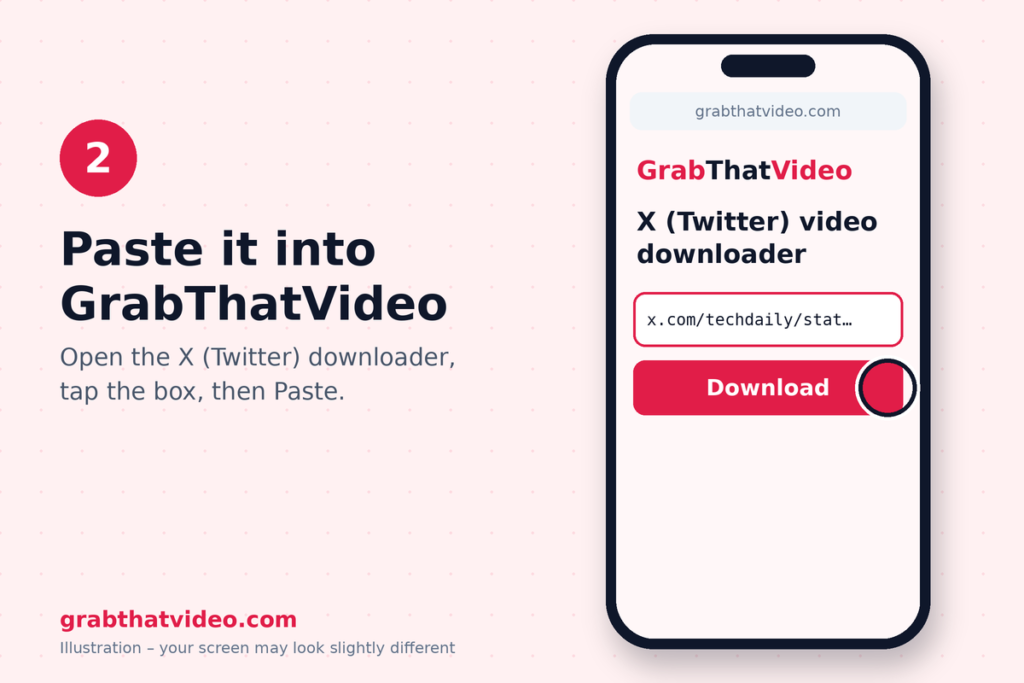
Open GrabThatVideo’s X (Twitter) video downloader in your browser. Tap or click the box and paste the link. GrabThatVideo recognises x.com and twitter.com links and fetches the post straight away.
Step 3: Choose a quality
Within a few seconds, GrabThatVideo shows one button for each resolution X stores for that video, often 1080p, 720p and a smaller size. Pick the highest for the sharpest picture, or a lower one to save mobile data. If the post has more than one video, each is listed separately.

Step 4: Save the MP4
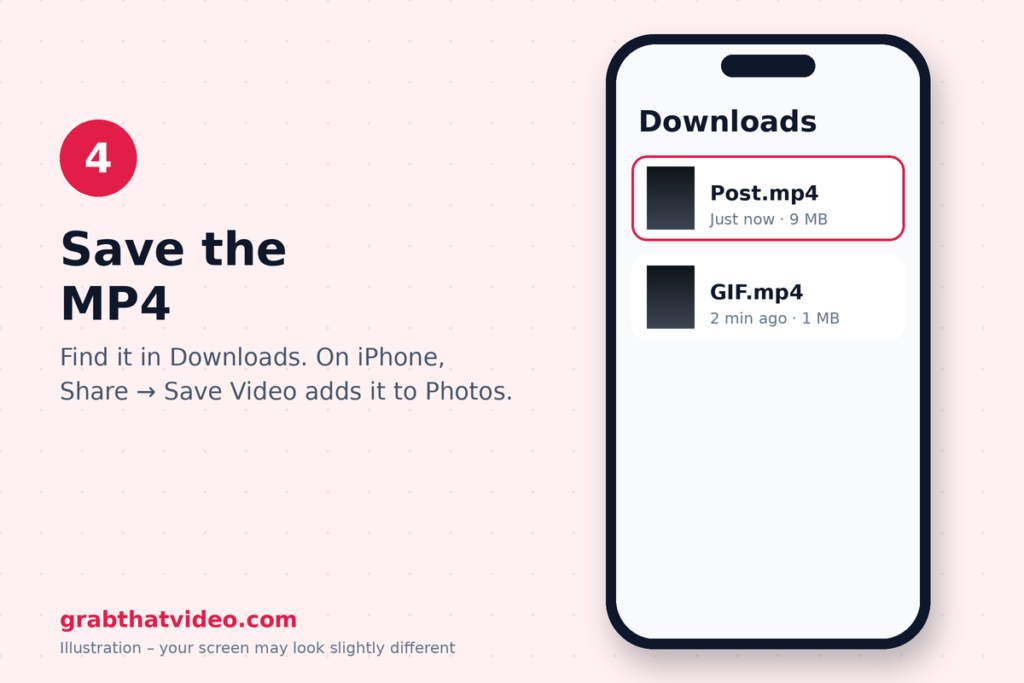
Your browser saves the file to its downloads. Tap the notification or open your Downloads folder to play it. If the video plays in a new tab instead, use the browser menu and choose Download, or right-click and choose Save video as.
How to Download GIFs from X
GIFs on X aren’t really GIF files. X turns every GIF into a short, silent video so it loads faster. That’s why GrabThatVideo saves them as MP4, the format X actually stores. The steps are the same as when you download Twitter video posts: copy the link, paste it and tap Download.
The MP4 loops in most players and plays fine on WhatsApp and Telegram. If you need a true .gif file, for a website or a chat app that only accepts GIFs, convert the MP4 with any free video-to-GIF converter.

Where Does the File Go?
Where the file goes after you download Twitter video posts depends on your device:
- Android: Files by Google (or My Files) → Downloads. It also appears in the Gallery under “Download”.
- iPhone and iPad: Files → Downloads. To move it to Photos, open it, tap Share and choose Save Video.
- Windows and Mac: your Downloads folder.
Tips to Download Twitter Video Posts Faster
A few habits help if you save videos from X often:
- Copy the post link, not the profile link. A link to someone’s profile has no video in it.
- Open a quoted post first. If the video sits inside a quoted post, open that post and copy its own link.
- Add GrabThatVideo to your home screen so it opens like an app.
- Rename the file after the topic or creator, so you can find it later and Download Twitter Video
What Can’t Be Downloaded?
Like every web tool that doesn’t ask for your X password, GrabThatVideo works with public posts only. When you download Twitter video posts, these can’t be saved:
- Posts from protected accounts.
- Live broadcasts and Spaces while they are still live.
- Videos sent in direct messages.
- Posts that have been deleted or hidden by X.
If you see “This video is private or needs a login”, the post falls into one of these groups.
Does the Video Keep Its Sound and Quality?
Yes. Videos keep their sound and the resolution X stores. GrabThatVideo can’t add quality the uploader didn’t publish, so a video posted in 720p stays 720p. GIFs have no sound because X stores them without audio.
Is It OKAY to Download Videos from X?
Most people download Twitter video posts to watch offline, keep a clip for reference, or archive their own posts. The video still belongs to the person who made it. Don’t repost someone else’s video as your own or use it commercially without their permission.
Save Videos from Other Platforms Too
The same copy, paste and download steps work across GrabThatVideo’s other free tools:
- the Instagram Reels downloader for Reels and video posts
- the Facebook video downloader for videos, Reels and fb.watch links
- the Pinterest video downloader for video pins and pin.it links
To compare tools that handle several platforms from one page, read our all-in-one video downloader roundup.
Who Makes GrabThatVideo?
GrabThatVideo is a free web tool built by Vipul Chaudhary, a brand and growth marketer based in Bangalore, India. It needs no sign-up, keeps no history of the links you paste, and deletes every prepared file from its server 30 minutes after it is created. Its download engine is updated every day, and every platform is tested on real public links every few hours.
Save Your next Video from X
Once you’ve done it once, it takes about 10 seconds to download Twitter video posts and GIFs: copy the link, paste it into GrabThatVideo and tap Download. You’ll find more step-by-step guides on the GrabThatVideo blog.
Please only download videos you own or have permission to use, and respect the creators who made them.
Follow GrabThatVideo on Facebook, YouTube and X for new guides and updates.
GrabThatVideo is not affiliated with X Corp. All trademarks belong to their owners.
How Do I Download Twitter Video Posts for Free?
Copy the post’s link with Share → Copy link, paste it into GrabThatVideo’s X (Twitter) video downloader, pick a quality and tap Download. It’s free, with no sign-up.
Do X.com Links Work?
Yes. Both x.com and twitter.com links work, with or without tracking parameters, and so do t.co short links.
Can I Download GIFs from X?
Yes. X stores GIFs as short videos, so they download as MP4 files that loop in most players.
Can I Download Twitter Video on My iPhone?
Yes. It works in Safari. The MP4 saves to Files → Downloads, and Share → Save Video moves it to Photos.
Can I Download from a Protected Account?
No. Only public posts can be downloaded.
Is There a Limit on How Many Videos I Can Save?
Each visitor can fetch about 15 videos per minute, which keeps the service fast for everyone.
How this article was checked. Features of other tools are taken from their own websites on the date shown above. GrabThatVideo is tested on real public links for Pinterest, Instagram, Facebook, X and LinkedIn. Nothing here is sponsored. Spotted something out of date? Tell us and we will fix it.