How to save Instagram Reels on iPhone (no App, no Account)
On this page (11 sections)
- What You Need Before You Start
- How to save Instagram Reels on iPhone in 5 Steps
- Where Do Downloaded Reels Go on iPhone?
- Can I save Instagram Reels on iPhone with Chrome?
- Does the Downloaded Reel Keep Its Sound and Quality?
- What About Carousel Posts with Several Videos?
- What Can’t Be Saved?
- Why Not Use Instagram’s Own save or Download Button?
- Other ways to save Reels on iPhone
- Who makes GrabThatVideo?
- Save Your next Reel
- How Do I save an Instagram Reel on iPhone Without an App?
- Do I Need to Log in to Instagram to Download a Reel?
- Why Can’t I Find the Reel in My Photos?
- Can I save a Reel from a Private Account?
- Will the Downloaded Reel Have a Watermark?
- Is There a Limit on How Many Reels I Can Download?
- Is It Legal to save Instagram Reels?
You can save Instagram Reels on iPhone without installing an app or creating an account. Copy the Reel’s link in Instagram, paste it into a web downloader in Safari, and the Reel downloads as an MP4 with sound. From the Files app, one more tap moves it to your Photos.
This GrabThatVideo guide shows each step on iPhone, explains where the file goes, and covers what can’t be saved, such as Stories and private accounts.
Quick answer: To save Instagram Reels on iPhone, open the Reel in Instagram, tap Share → Copy link, paste the link into GrabThatVideo’s Instagram Reels downloader in Safari, choose a quality and tap Download. Then open Files → Downloads, tap the video and choose Share → Save Video to move it into Photos. If you’ve ever lost a favourite Reel because the creator deleted it, this guide shows the quickest way to save Instagram Reels on iPhone.
What You Need Before You Start
Save Instagram Reels on iPhone needs three things, all of which most iPhones already have:
- The Instagram app, or Instagram in a browser, to copy the Reel’s link.
- Safari, the iPhone’s built-in browser. Any iOS version from iOS 13 onwards can download files in Safari.
- A public Reel. Reels from private accounts can’t be downloaded by any web tool, because they need a login to watch.
You don’t need an Instagram login on the downloader, a paid app, or a computer. Safari, a public Reel and about 10 seconds are all it takes to save Instagram Reels on iPhone.
How to save Instagram Reels on iPhone in 5 Steps
Step 1: Copy the Reel’s link
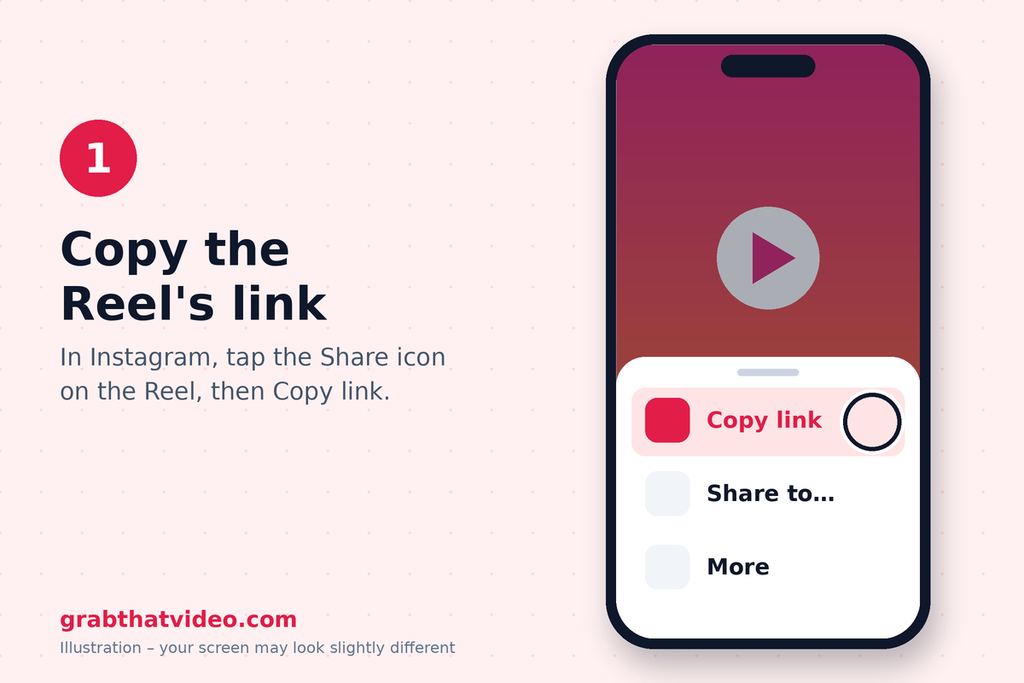
Open the Reel in Instagram and tap the Share icon (the paper plane). Then tap Copy link. The link looks like instagram.com/reel/…. Moving the file from Files to Photos is the one step most people miss when they save Instagram Reels on iPhone.
Step 2: Paste the link into GrabThatVideo in Safari
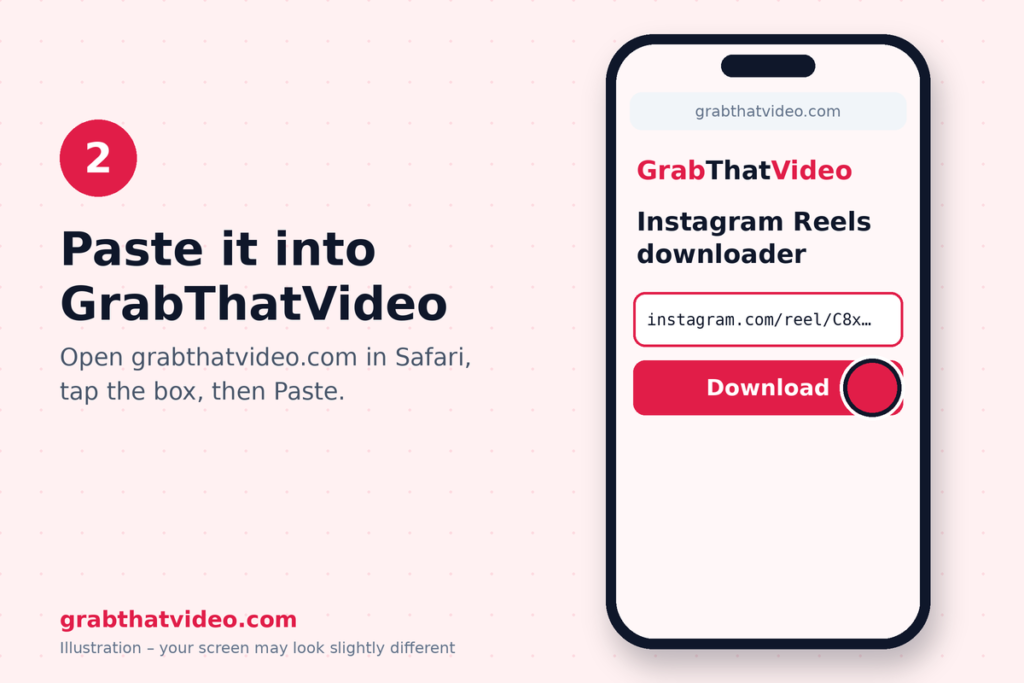
Open Safari and go to GrabThatVideo’s Instagram Reels downloader. Tap the box, then tap Paste. GrabThatVideo recognises the Instagram link and starts fetching the Reel straight away.
[SCREENSHOT: GrabThatVideo page in Safari with an Instagram Reel link pasted. Alt text: “Instagram Reel link pasted into GrabThatVideo in Safari on iPhone”]
Step 3: Choose a quality
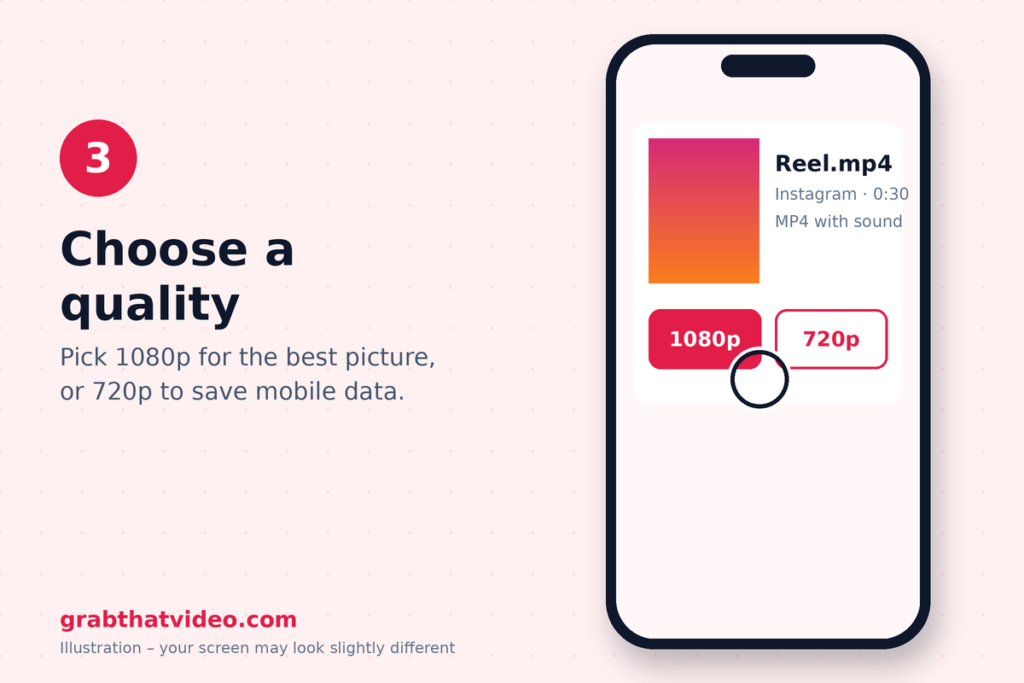
Within a few seconds, GrabThatVideo shows the Reel with one button for each resolution Instagram offers, for example 1080p or 720p. Pick the highest one for the best picture, or a smaller one to save mobile data. Every option downloads as one MP4 with sound.
Step 4: Tap Download in Safari
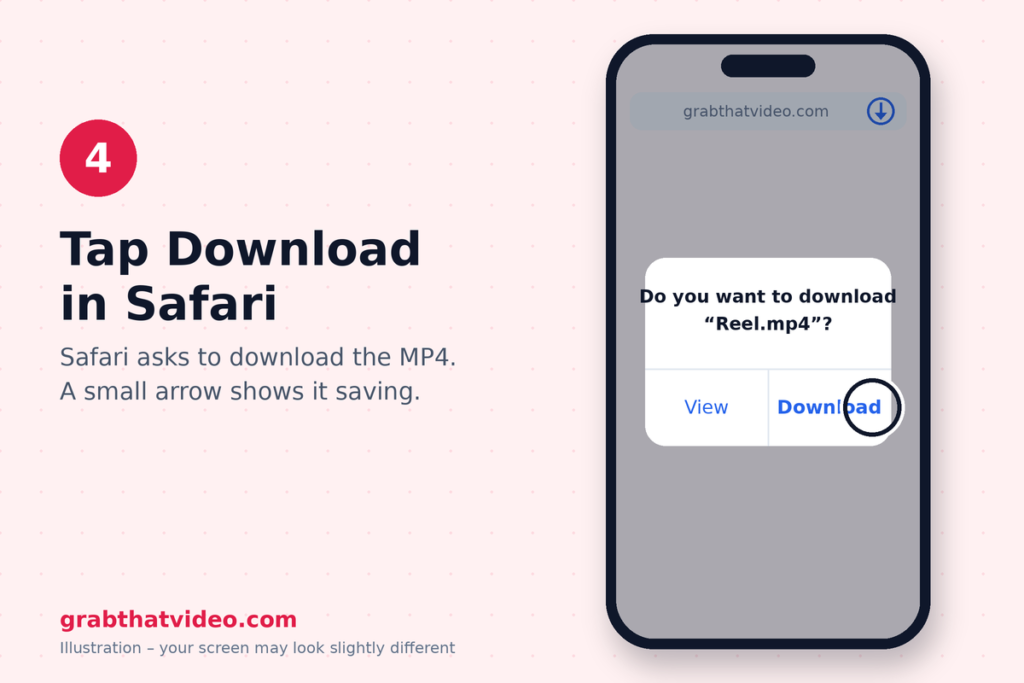
Safari asks whether you want to download the file. Tap Download. A small arrow icon appears in Safari’s address bar while the file saves.
Step 5: Move the Reel to your Photos
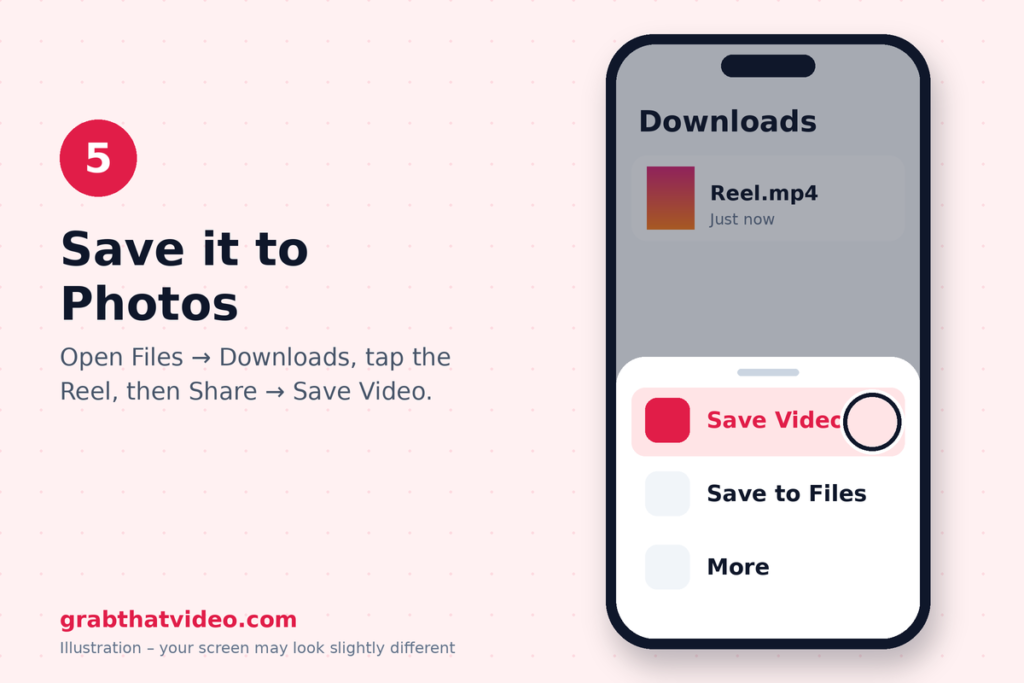
Safari saves downloads to the Files app, not to Photos. To move the Reel to your camera roll:
- Open the Files app and go to Downloads (under “On My iPhone” or “iCloud Drive”).
- Tap the video to open it.
- Tap the Share button and choose Save Video.
The Reel now appears in your Photos app like any other video.
Moving the file from Files to Photos is the one step most people miss when they save Instagram Reels on iPhone.
Where Do Downloaded Reels Go on iPhone?
Downloaded Reels go to Files → Downloads by default, because that is where Safari puts every download. They only appear in Photos after you choose Save Video from the share sheet, as in step 5.
If you can’t find the file, open Safari, tap the download arrow in the address bar, and tap the magnifying glass next to the Reel. That opens its exact location.
Can I save Instagram Reels on iPhone with Chrome?
Yes, but it takes one extra step. Chrome on iPhone keeps downloads inside Chrome. After the download finishes, tap Open in… and choose Save to Files or Save Video. Safari is quicker because it saves straight to the Files app.
Does the Downloaded Reel Keep Its Sound and Quality?
Yes. Instagram often stores a Reel’s video and audio as separate files, especially in HD. GrabThatVideo merges them into one MP4 on its own server, so the downloaded Reel plays with sound on iPhone, and on any other device you send it to.
The quality matches what Instagram offers for that Reel. GrabThatVideo can’t make a Reel sharper than the version the creator uploaded.
What About Carousel Posts with Several Videos?
When a post contains more than one video, GrabThatVideo lists each video separately, numbered “Video 1 of 3” and so on. You can save just the clip you need instead of the whole post. Photos in a carousel aren’t downloaded, because GrabThatVideo saves videos only.
What Can’t Be Saved?
GrabThatVideo, like every web tool that doesn’t ask for your Instagram password, works with public posts only. These can’t be downloaded:
- Instagram Stories, because viewing them needs a login.
- Reels from private accounts and Close Friends content.
- Live videos while they are still live.
If you see “This video is private or needs a login”, the Reel falls into one of these groups. Try a public Reel instead.
Why Not Use Instagram’s Own save or Download Button?
Instagram’s Save button (the bookmark icon) keeps a Reel inside the Instagram app only. It doesn’t put a file on your iPhone, and the Reel disappears from your saves if the creator deletes it.
Some public Reels also show a Download option in Instagram’s share menu. When it’s there, it usually adds an Instagram watermark, and creators can turn it off. A web downloader gives you the MP4 file with no watermark added, whether or not that option is shown.
Other ways to save Reels on iPhone
If you’d rather compare tools first, we’ve written honest comparisons of two popular Instagram downloaders. The SnapInsta alternative comparison covers SnapInsta, which also saves public Stories and photos. The Igram.io alternative comparison covers iGram.
If you also save videos from Pinterest, Facebook, X or LinkedIn, our comparison of all-in-one video downloaders shows which tools handle several platforms from one page.
Who makes GrabThatVideo?
GrabThatVideo is a free web tool built by Vipul Chaudhary, a brand and growth marketer based in Bangalore, India. GrabThatVideo needs no sign-up, keeps no history of the links you paste, and deletes every prepared file from its server 30 minutes after it is created. Its download engine is updated every day, and every platform is tested on real public links every few hours.
Save Your next Reel
Save Instagram Reels on iPhone takes about 10 seconds once you’ve done it once: copy the link, paste it into GrabThatVideo, download, and save to Photos. GrabThatVideo also works for Pinterest, Facebook, X and LinkedIn videos from the GrabThatVideo, and you’ll find more guides on the GrabThatVideo blog.
Please only download Reels you own or have permission to use, and respect the creators who made them. Bookmark GrabThatVideo in Safari, and next time it will take just a few taps to save Instagram Reels on iPhone.
Follow GrabThatVideo on Facebook, YouTube and X for new guides and updates.
GrabThatVideo is not affiliated with Instagram, Meta or Apple. All trademarks belong to their owners.
How Do I save an Instagram Reel on iPhone Without an App?
Copy the Reel’s link from Instagram’s Share menu, paste it into GrabThatVideo in Safari, choose a quality and tap Download. Then open Files → Downloads, tap the video and choose Share → Save Video to put it in Photos.
Do I Need to Log in to Instagram to Download a Reel?
No. GrabThatVideo never asks for your Instagram login. It works with public Reels, which anyone can watch without signing in.
Why Can’t I Find the Reel in My Photos?
Safari saves downloads to the Files app, not to Photos. Open Files → Downloads, tap the Reel, then tap Share → Save Video to copy it into Photos.
Can I save a Reel from a Private Account?
No. Reels from private accounts need a login to view, so no web downloader can save them. Only public Reels can be downloaded.
Will the Downloaded Reel Have a Watermark?
GrabThatVideo doesn’t add a watermark. You get the Reel as Instagram serves it, merged into one MP4 with sound.
Is There a Limit on How Many Reels I Can Download?
Each visitor can fetch about 15 videos per minute. The limit keeps GrabThatVideo fast for everyone, and most people never reach it.
Is It Legal to save Instagram Reels?
Saving a Reel for personal, offline viewing is generally fine, but the Reel still belongs to its creator. Don’t re-upload someone else’s Reel or use it commercially without their permission.
How this article was checked. Features of other tools are taken from their own websites on the date shown above. GrabThatVideo is tested on real public links for Pinterest, Instagram, Facebook, X and LinkedIn. Nothing here is sponsored. Spotted something out of date? Tell us and we will fix it.